

1) executing PowerShell script
2) executing bash script and
3) To run the command directly
Executing a PowerShell Script:
a.To execute a PowerShell script from Mule 4, configure the PowerShell Connector to connect to the target system and provide the script file along with any required parameters.

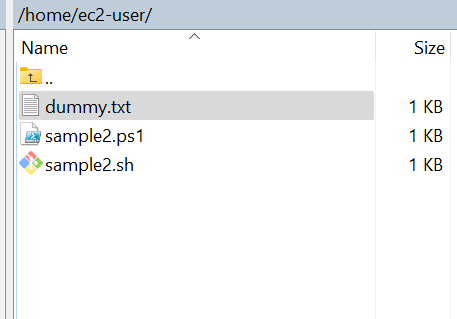
For instance, consider this script, which is essentially a basic “hello world” program, designed to accept two parameters.
param (
……..[string]$firstname,
……..[string]$lastname
… )
“Hello World ” + $firstname + ” ” + $lastname | Out-File -FilePath “/home/ec2-user/dummy.txt”
a. Create a flow in mule with accepts 2 query parameters a and b from a http listener.
b. Look for PowerShell connector in Mule exchange and add it to palette and POM.xml.

POM.xml:
<dependency>
<groupId>com.mulesoft.connectors</groupId>
<artifactId>mule-powershell-connector</artifactId>
<version>2.1.3</version>
<classifier>mule-plugin</classifier>
</dependency>
c. Drag the PowerShell execute script with exception handling to your project
 d. Configure the connector by providing the username and password details of the system you intend to connect to
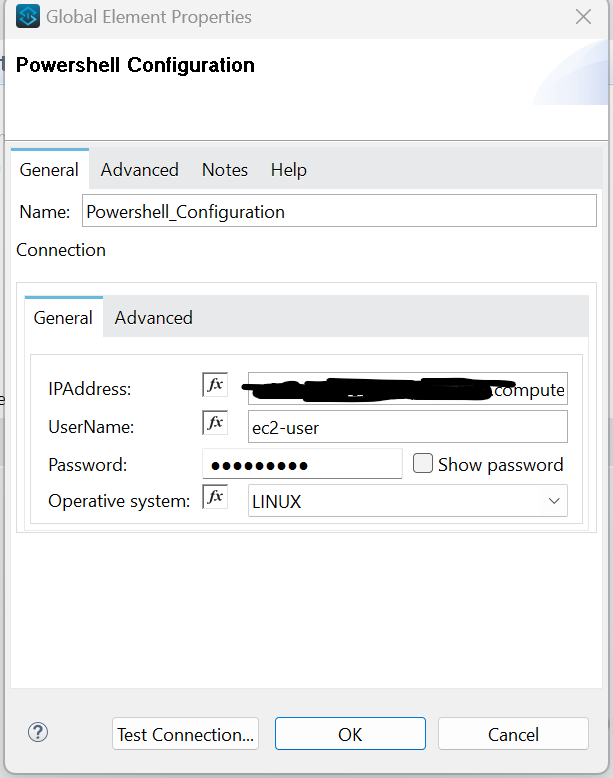
e. For the PowerShell connector, add the file you want to execute and the params you want to pass to the connector in the File Content.

File Content: “/home/ec2-user/sample2.ps1 ” ++ attributes.queryParams.a default “”++ ” ” ++ attributes.queryParams.b default
f. Run the project to obtain the output specified within the ps1 file.
Running a Bash Script Using PowerShell Connector:
To run a Bash script from Mule 4 using the PowerShell Connector, the process is similar to running a PowerShell script. The main difference is that you specify the Bash command and the script path in the File Content field, as shown below.

File Content: bash /home/ec2-user/sample2.sh
Executing Commands with PowerShell Connectors:
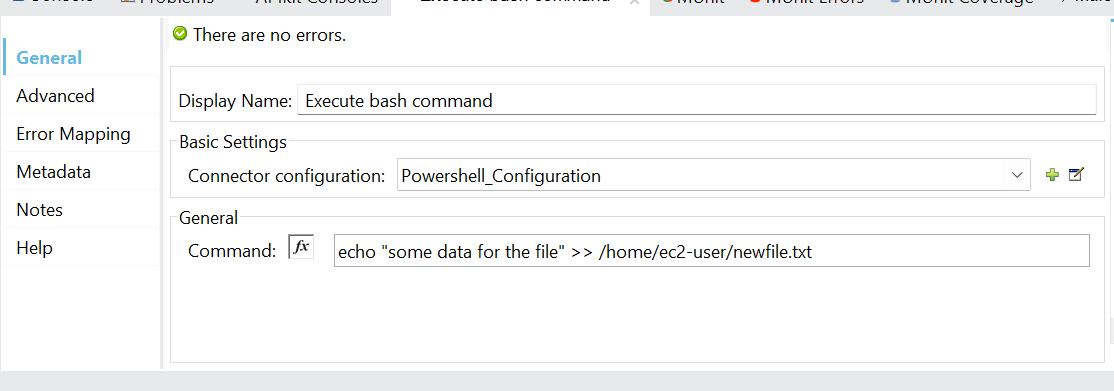
You can also run commands directly from the Mule code, which will directly execute on the external system using PowerShell execute command connector.
In the command section, the requisite command for execution must be written.

PowerShell Connector vs Scripting Module in Mule 4
The PowerShell Connector and Mule 4 Scripting Module serve different purposes. The PowerShell Connector is designed to execute commands and script files on a configured local or remote machine.
The Mule 4 Scripting Module is used when custom scripting logic needs to run as part of a Mule flow. It can work with Mule variables, payloads, logging, and other flow data through a supported scripting engine.
If you need to execute a command or script on another machine, the PowerShell Connector or an SSH-based approach is more suitable. If you need to execute custom scripting logic within the Mule flow itself, the Scripting Module is the appropriate option.
Executing Scripts Using Invoke Static
For systems that do not have PowerShell installed and only have the bash shell installed, you can use the following Java code using the Invoke static connector.
1. Create a Java file in the java folder. In that, write the following method:
You can give your command to the server using the script path variable. The parameters host, username, and password contain the configuration of the server you wish to call.
public class Callssh {
public static void executeScript(String host, String username, String password, String scriptPath) {
try {
JSch jsch = new JSch();
Session session = jsch.getSession(username, host, 22);//username host and password and port take from property file.
session.setPassword(password);
session.setConfig(“StrictHostKeyChecking”, “no”);
session.connect();
ChannelExec channel = (ChannelExec) session.openChannel(“exec”);
channel.setCommand(“bash ” + scriptPath); // or whatever shell you need to execute the script
channel.setErrStream(System.err);
channel.connect();
// You can handle the output if needed
channel.disconnect();
session.disconnect();
} catch (JSchException e) {
e.printStackTrace();
}
}
}
1. Configure Invoke static to call the method: 2. So, your overall flow looks like this:
Executing Remote Scripts from CloudHub
When a Mule application is deployed to CloudHub, the target server must be reachable from the CloudHub environment before a remote command or script can be executed. The required network access, credentials, firewall rules, and routing must be configured based on where the target server is hosted.
For servers inside a private or on-premises network, private connectivity may be required. Once connectivity to the target system is established, the appropriate remote execution method can be used based on the operating system and integration requirements.
Conclusion:
Following these guidelines makes executing scripts on MuleSoft Experts or CloudHub servers a more simplified and efficient operation, assuring optimal performance and dependability in your workflows.
Execute server-side scripts from Mule or CloudHub using SSH Connector for automation, remote processing, and secure real-time operations.
To summarize, optimizing script execution in Mule and CloudHub is critical for increasing integration workflow efficiency and dependability. Organizations can improve automation in their Mule projects by employing tools and connectors like the PowerShell Connector and Invoke Static Connector. Organizations may maximize the potential of their integration platforms and promote commercial success by using best practices and remaining current with evolving trends.